Payroll Reports
Payroll Reports pull data you select so that information can be organized, printed or exported.
Customizing Reports
Select Payees & Date Range
-
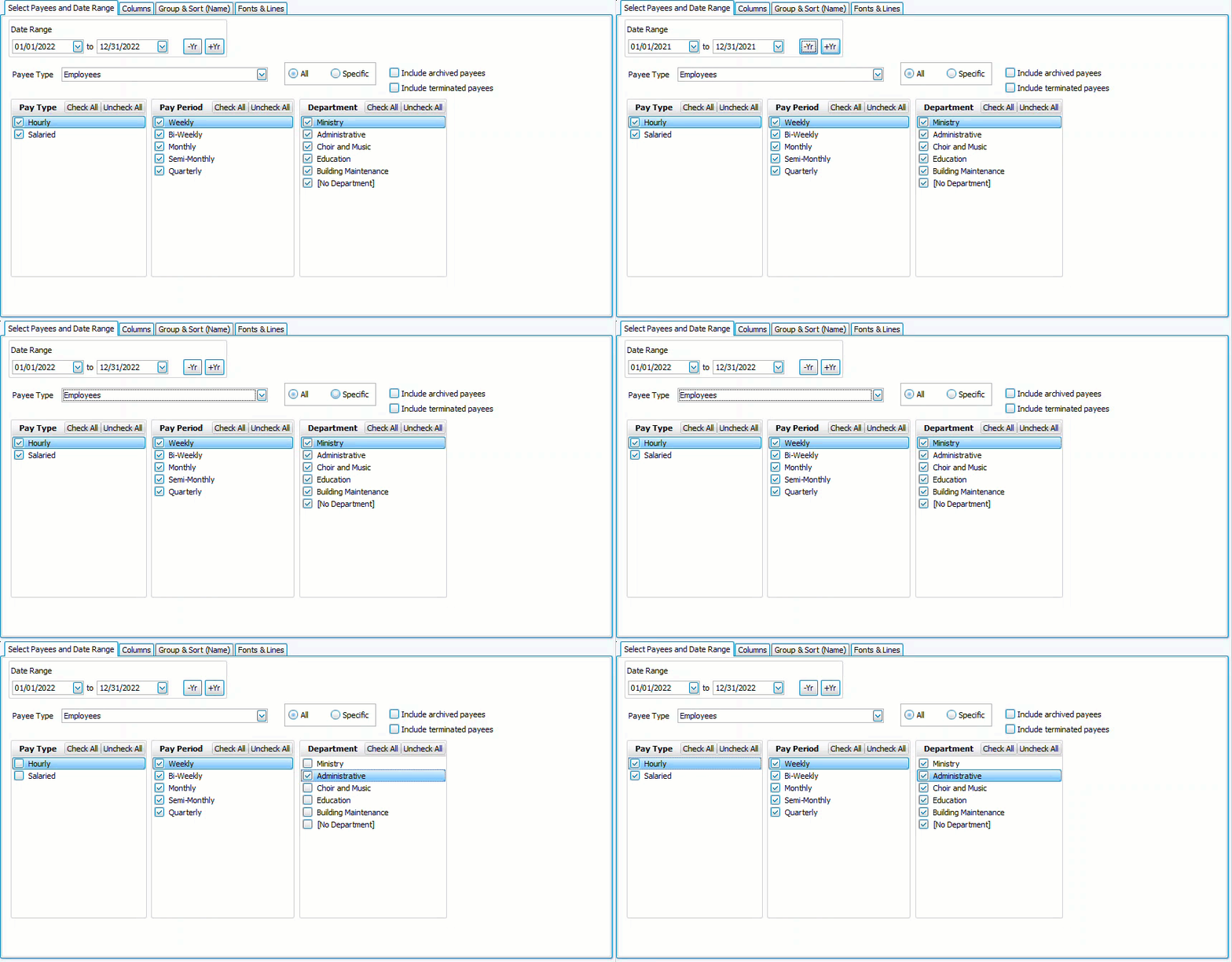
This tab allows you to filter the people or time frame you want your report to include.
-
You can choose between Employees or Contractors in the drop down and have the option to filter based on Pay Type, Pay Period, or Department or choose specific payees.
-
Include payees that have been archived or terminated with check boxes. Those names will appear in red.
Columns
-
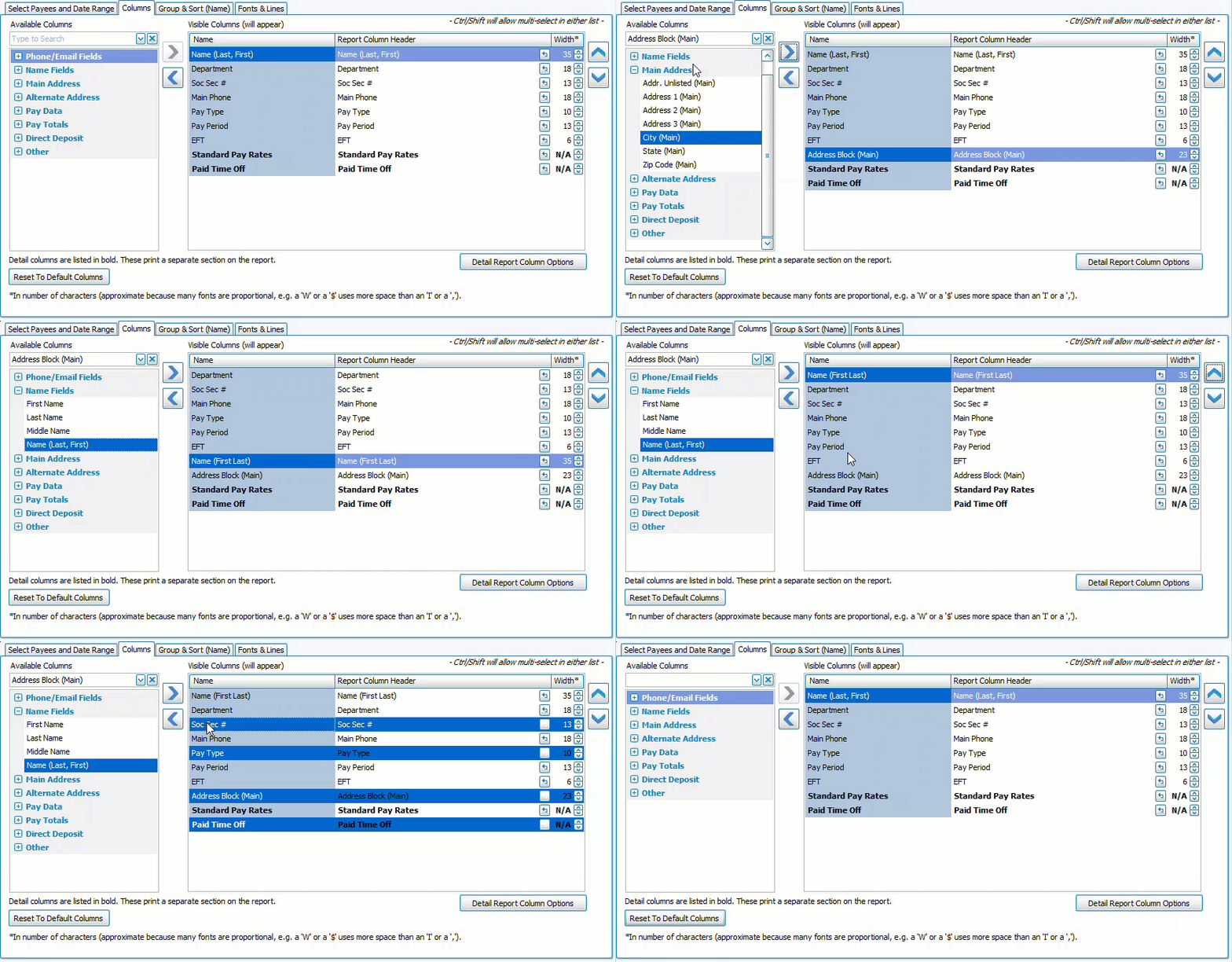
Move columns you want to include to the right, and columns you want to exclude to the left.
-
Use the
 and
and  or double click to move a column to the opposite side.
 -
To select multiple columns at once
-
Click + CTRL - Selects multiple lines in any order
-
Click + SHIFT - Selects a range of lines in row
-
-
Use the
 and
and  to change the order of the columns from left to right.
 -
Determine the width of a column by character count. Change or abbreviate how a column is titled by editing Report Column Header.
-
Columns that appear in bold are Detail Report Columns and include additional information indented under a subheading.
-
Click
 to select subheading columns and detail.
 -
Click
 to restore the report defaults.
Group & Sort
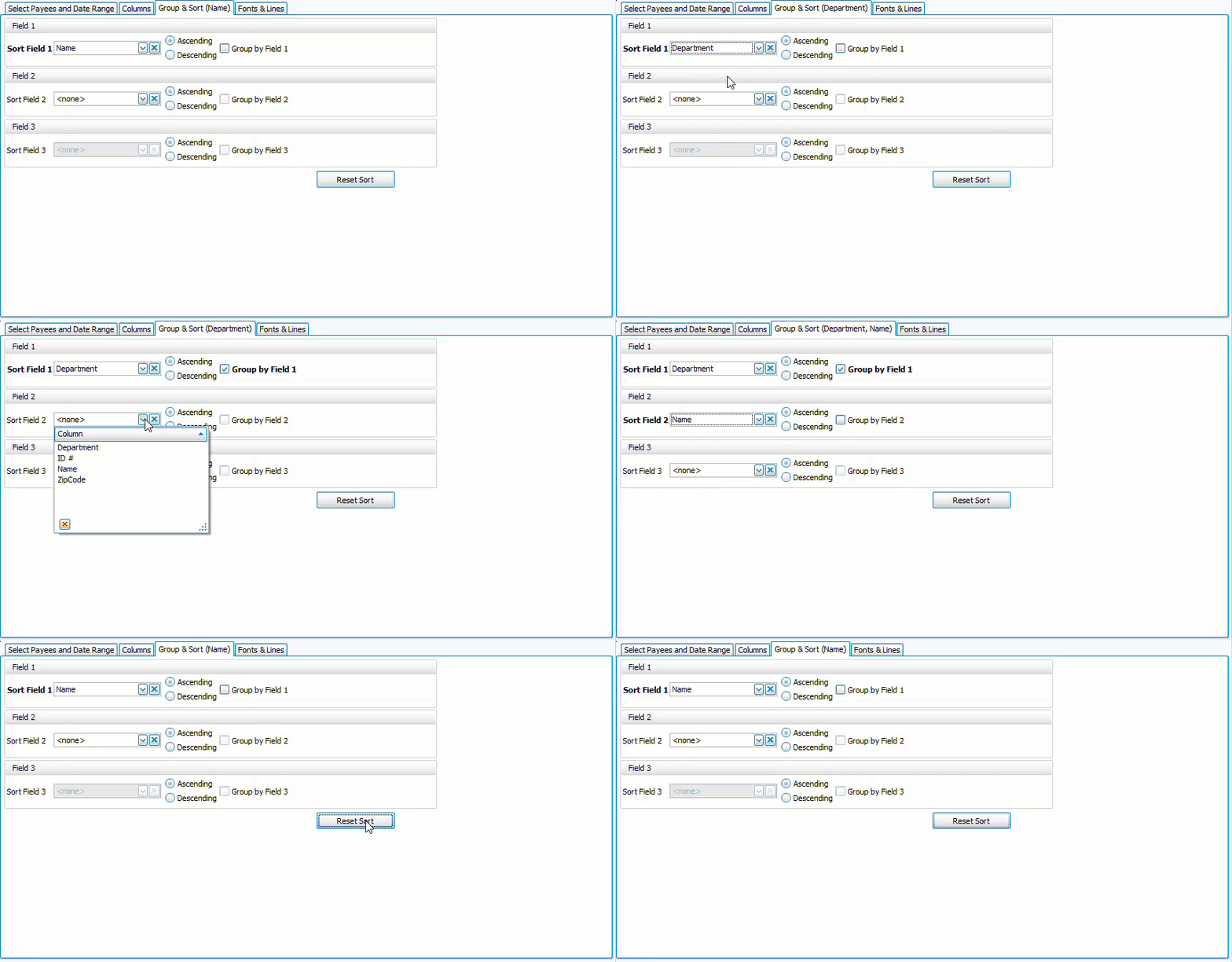
Sort fields allow you to order information. The first takes priority, when those are all the same, the program will sort within that section by the selection in the second, and then the third.
-
Sort in Ascending (A-Z, 0-9) or Descending (Z-A, 9-0) order.
-
Click
 to restore defaults.
The Group By option separates the corresponding Sort Fields into report sections.
Fonts & Lines
-
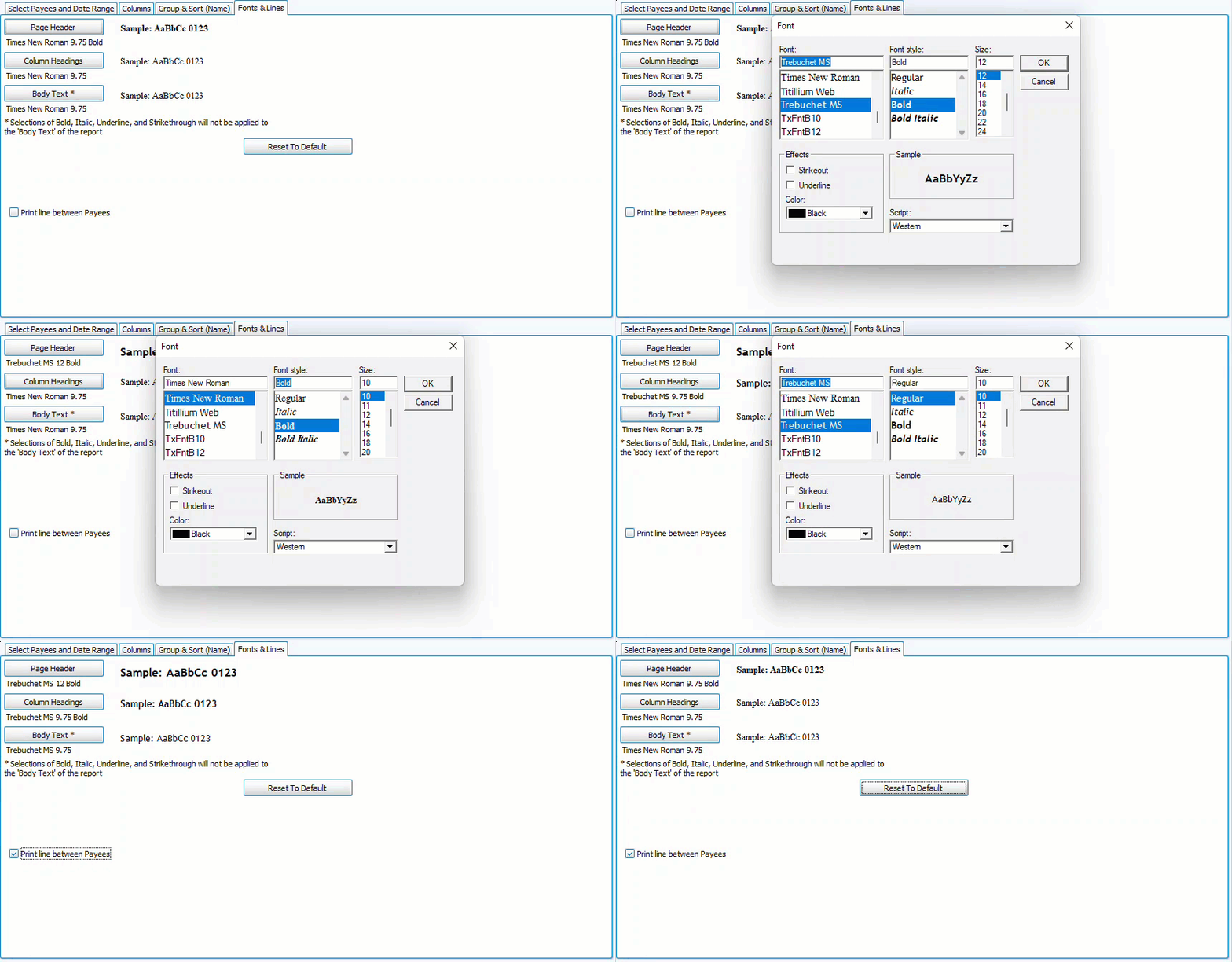
The Fonts tab is where you can control the typography of your report.
-
Click
 to restore the default 9.75 Times New Roman.